# Deployment Guide
> This section contains detailed information to help you setup The Things Stack on the AWS Marketplace.
Source: https://www.thethingsindustries.com/docs/enterprise/aws/ami/deployment-guide/
This section contains detailed information to help you setup The Things Stack on the AWS Marketplace.
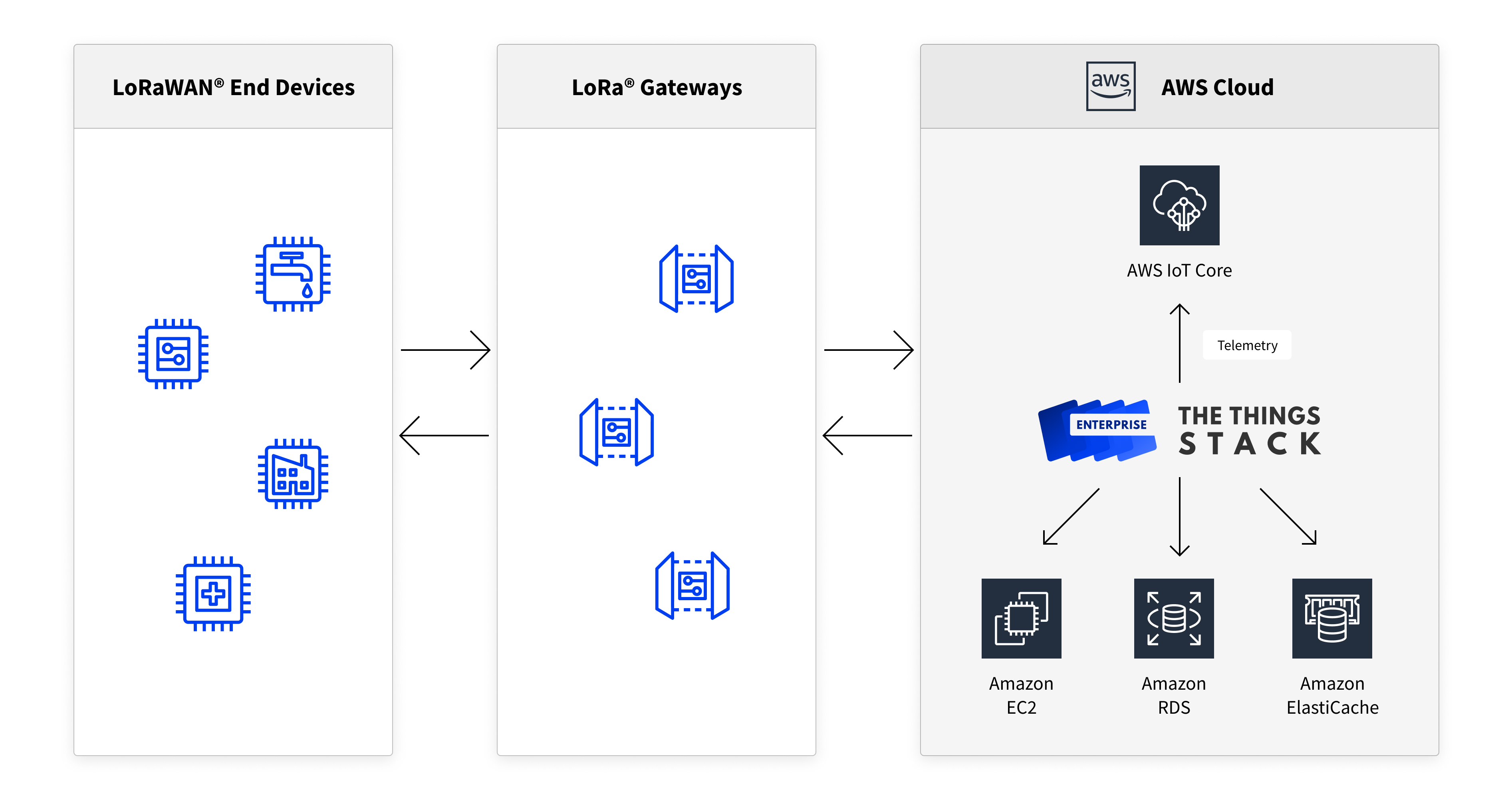
### AWS Deployment Architecture
The following image describes the architecture of the components that are deployed while using the **default parameters**.

> **Note:** The public subnet is not fixed in to an Availability Zone (AZ) and hence is part of the default AZ of the VPC.
## Preparation
This section lists the preparatory steps necessary to successfully complete this guide.
### Specialized Knowledge
In order to follow this guide to deploy The Things Stack, it is recommended to be familiar with the following concepts:
- AWS EC2, AWS CloudFormation
- Shell and command line usage
- Basics of LoRaWAN devices and gateways
### Prerequisites
The following are necessary to complete this guide:
1. An account with AWS with access to the AWS Marketplace. If you don't have one, create it by using the [Create an AWS account](https://portal.aws.amazon.com/billing/signup#/start) page.
2. An RSA Public-Private Key pair
3. Sufficient rights on your account to create IAM roles
4. A LoRaWAN compliant Gateway
5. A LoRaWAN compliant End Device
6. Access to a name server for DNS mapping
7. (Optional) An AWS Secret containing TLS certificate data, if a custom TLS certificate is needed
## Deployment using AWS Cloud Formation
### Step 1: Prepare the Deployment
1. Login to your AWS Marketplace and navigate to the [product page for The Things Stack for LoRaWAN](https://aws.amazon.com/marketplace/pp/B081HZKDJ4).
2. Choose the correct AWS Region in which to deploy your stack. Also choose the **Software Pricing Tier** that suits your needs.
3. Make sure to read the terms of usage and other information available.
4. If applicable, [request a service limit increase](https://console.aws.amazon.com/support/cases#/create?issueType=service-limit-increase&limitType=service-code-) for additional VPCs and/or Elastic IPs.
5. Click **Continue to Subscribe** and accept the terms and conditions once they are found satisfactory.
6. Now click **Continue to Configuration** to configure your deployment.
### Step 2: Configure the Deployment
The **Continue to Configuration** button will redirect you to the AWS CloudFormation page where the CloudFormation template is pre-loaded.
This template allows the user to customize the deployment. The following is a list of the supported parameters that are available to the user.
#### Basic Configuration
| Parameter | Description | Default |
| ----------------- | ------------------------------------------------------------------------------------------------------------------------------------- | --------------------------------------- |
| EC2 Instance Name | Name of the EC2 instance. | tts |
| Domain | Domain name. You should be able to configure DNS for the domain. TLS certificates from Let's Encrypt will automatically be requested. | - |
| Network Title\* | The title of your deployment. | The Things Stack Enterprise for LoRaWAN |
| CIDR block | CIDR block used by the VPC. | 10.0.0.0/16 |
> \* Optional field
#### Security Configuration
| **Parameter** | **Description** | **Default** |
| ----------------------------------------------- | ------------------------------------------------------------------------------------------------------------------------------------------------------------------------------------------------------------------------------------------ | --------------------- |
| TLS Certificate\* | TLS certificate to use. If left empty, TLS certificates from Let's Encrypt will automatically be requested. | - |
| TLS Certificate Key\* | TLS certificate key to use. If left empty, TLS certificates from Let's Encrypt will automatically be requested. | - |
| TLS Certificate CA\* | TLS certificate CA to use. If left empty, TLS certificates from Let's Encrypt will automatically be requested. | - |
| TLS Certificate Secret ARN\* | TLS certificate data specified as an AWS secret. If this secret is specified, TLSCertificate, TLSCertificateCA and TLSCertificateKey values will be ignored. The AWS secret must have 3 key/value pairs with the key names: cert, key, ca. | - |
| Allow unauthenticated Basic Station connections | Allow unauthenticated Basic Station connections. This should only be set only for testing purposes. | false |
| Admin Username | Name of the admin user. | `admin` |
| Initial Admin Password | Initial admin password. Please choose a strong password. It is recommended to change this password upon first login. | - |
| Admin Email | Email address of the admin user. | `admin@mycompany.com` |
| Amazon ElastiCache KMS Key ID\* | Key used for Redis at-rest encryption. Leave empty to disable encryption. (Warning) A change to this field requires manual migration of the database. | - |
| Amazon ElastiCache Password\* | Password used to access Redis. Leave empty to disable TLS connection. (Warning) A change to this field requires manual migration of the database. | - |
| Amazon RDS Database Username | Username of the relational database. | `postgres` |
| Amazon RDS Database Password | Password for the relational database. This password is used to access the Amazon RDS database. | - |
| SSH Key | Name of an existing EC2 KeyPair to enable SSH access to your instance. | - |
| SendGrid API Key\* | API key for [SendGrid](https://sendgrid.com/) to send emails. | - |
> \* Optional field
#### Email Settings
| **Parameter** | **Description** | **Default** |
| ------------------- | ------------------------------------------------------------------------------------------- | ----------- |
| Email Provider | Email provider for The Things Stack Identity Server | sendgrid |
| SendGrid API Key | If email provider is sendgrid: API key for SendGrid (https://sendgrid.com/) to send emails. | |
| SMTP Server Address | If email provider is smtp: Address of the SMTP server. | |
| SMTP Username | If email provider is smtp: Username for the SMTP server. | |
| SMTP Password | If email provider is smtp: Password for the SMTP server. | |
#### External Connectivity
| **Parameter** | **Description** | **Default** |
| ----------------------------------- | -------------------------------------------------------------------------------------------------------------------------- | ----------- |
| Restrict SSH Access to IP Range | The source IP address range that can be used to connect via SSH to the EC2 instances. Use 0.0.0.0/0 for global SSH access. | 0.0.0.0/0 |
| Restrict Service Access to IP Range | The source IP address range that can be used to connect to the deployed services. Use 0.0.0.0/0 for global access. | 0.0.0.0/0 |
#### User Registration
> **Note:** All of the fields below are optional.
| **Parameter** | **Description** | **Default** |
| ------------------------------------ | -------------------------------------------------------------------------------------- | ----------- |
| Require Admin Approval | If set to true, administrator approval is needed for creating new accounts. | false |
| Require Email Validation | If set to true, validation of contact information is necessary to create new accounts. | false |
| Require User Invites | If set to true, email invites are necessary to create new accounts. | false |
| Minimum Length | Minimum length for user passwords. | 8 |
| Minimum Number of Digits | Minimum number of digits for user passwords. | 1 |
| Minimum Number of Special Characters | Minimum number of special characters for user passwords. | 0 |
| Minimum Number of Uppercase Letters | Minimum number of uppercase letters for user passwords. | 1 |
#### Resource Settings
> **Note:** The fields in this section are for advanced users. A change to some of these parameters might incur additional costs.
> **Note:** In order to provide failover, we recommend enabling Multi-AZ for Amazon RDS and Redis.
| **Parameter** | **Description** | **Default** |
| ---------------------------------- | -------------------------------------------------------------------------------------------------------------------------------------------------------------------------------------------- | --------------- |
| EC2 Instance Type | EC2 Instance Type. | t3.small |
| Redis Backup Retention Period\* | The retention period for daily Redis backups (days). | 7 |
| Redis Instance Type | The size of machine for the Redis instance. | cache.t4g.small |
| Enable Multi-AZ for Redis | If true, replicas of Redis are created. If true, RedisNumCacheClusters property must be greater than 1. | false |
| Number of Redis Multi-AZ Instances | The number of replicas for this replication group. If RedisMultiAZSupport is true, this value must be greater than 1. Note that this multiplies the Amazon ElastiCache Redis instance costs. | 1 |
| Amazon RDS Database Name | Name of the relational database. (Warning) A change to this field requires manual migration of the database. | ttn_lorawan |
| Amazon RDS Instance Type | The instance type for the Amazon RDS database. | db.t4g.small |
| Amazon RDS Backup Retention Period | The retention period for daily Amazon RDS backups (days). (Warning) A change to this field requires manual migration of the database. | 7 |
| Amazon RDS Postgres Version | PostgreSQL version for the Amazon RDS database. | 16.4 |
| Enable Multi-AZ for Amazon RDS | If true, a failover instance is created in case the primary instance fails. Note that this doubles the Amazon RDS instance costs. | false |
#### LoRaWAN Network Server Settings
> **Note:** All of following parameters are optional.
| **Parameter** | **Description** | **Default** |
| ---------------------- | ------------------------------------------------------------------------------------------------------------------------------------------------------------------------------------------------------------------------------------------------------------------------------------------ | ------------------ |
| LoRaWAN JoinEUI Prefix | Prefix for the LoRaWAN JoinEUIs that are handled by this network. | 0000000000000000/0 |
| LoRaWAN DevAddr Prefix | Prefix for the LoRaWAN DevAddrs that are handled by this network. | 00000000/7 |
| LoRaWAN NetID | The LoRaWAN NetID that is assigned through [LoRa Alliance membership](https://lora-alliance.org/become-a-member). This is required if your network needs interoperability (e.g. roaming, peering, join flow) with other networks. If you do not have a NetID, please use 000000 or 000001. | 000000 |
#### Managed Gateways New in 3.34.0
> **Note:** All of following parameters are optional.
| **Parameter** | **Description** | **Default** |
| ----------------------------- | ------------------------------------------------------------------------------------------------------------------------------------------------------------------------------------------------------------------------------------------------------------------------------------------------------------------------------------------ | ----------- |
| The Things Gateway Controller | If set to true, The Things Stack connects to The Things Gateway Controller for claiming and configuring managed gateways (including The Things Indoor Gateway Pro). If you are using a TLS certificate that is signed by a private CA, contact support@thethingsindustries.com to get your CA configured in The Things Gateway Controller. | false |
#### AWS IoT settings
| **Parameter** | **Description** | **Default** |
| ----------------- | --------------------------------------------------------- | ----------- |
| AWS IoT Telemetry | If set to true, publish all upstream messages to AWS IoT. | true |
#### Update From Existing Deployment
> **Note:** The following parameters are exclusively meant for updating an existing deployment.
| **Parameter** | **Description** |
| ---------------------------------- | --------------------------------------------------------------------------------------- |
| Amazon RDS Snapshot | The ARN (Amazon Resource Name) of the Amazon RDS snapshot to restore the database from. |
| Amazon ElastiCache Redis Snapshot | The name of the Redis snapshot to restore the database from. |
| S3 Profile Pictures Bucket Name | The name of the S3 bucket for profile pictures. |
| S3 End Device Pictures Bucket Name | The name of the S3 bucket for end device pictures. |
### Step 3: Start the Deployment
1. Once the parameters of The Things Stack are configured, click **Next** to configure options for the CloudFormation Stack. You may use the defaults in this page.
2. Click **Next** review the deployment. Select the **I acknowledge that AWS CloudFormation might create IAM resources.** checkbox and click **Create Stack** option.
3. If all the parameters were entered correctly, AWS CloudFormation triggers the creation of your CloudFormation stack. The stack is now in the `CREATE_IN_PROGRESS` state. On average, this process takes about 40 minutes.
4. You can monitor the status of your deployment by navigating to **CloudFormation** > **\** > **Events**.
5. Once the required resources are successfully deployed, the state of the CloudFormation stack is updated to `CREATE_COMPLETE`.
Upon completion of these steps, please head over to the [Post Deployment Configuration guide](https://www.thethingsindustries.com/docs/enterprise/aws/ami/post-deployment/) to configure your deployment.