Seeed Studio S210x Series
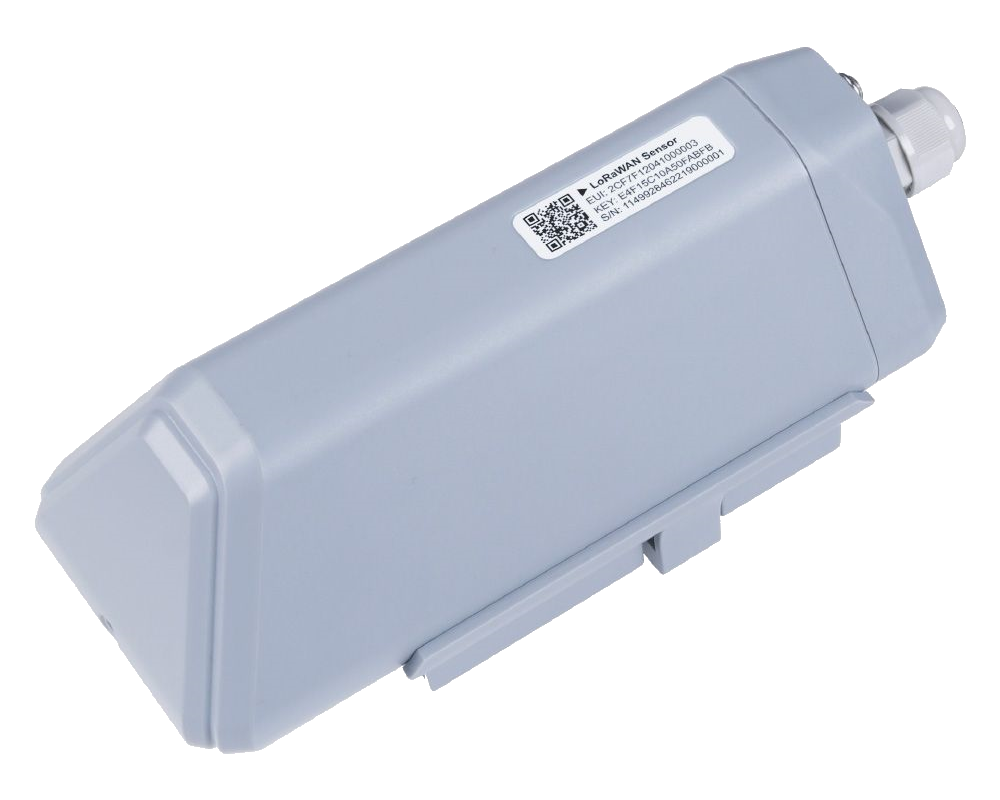
The Seeed Studio S210x Series offers users industrial long-distance data acquisition via LoRaWAN. This series is suitable for a wide variety of different industries such as smart agriculture, smart buildings and industrial control.
Sensor Setup
To acquire the provisioning information and properly setup the sensor you must download the SenseCap Mate App from the Play Store or the App Store on your phone.
After opening the app it will ask you to log in/create an account, but you can click on Skip in the top right if you don’t wish to sign up.
Then click the device you wish to connect to (either the S210x Sensor or the S2100 Data Logger) and select configuration mode: Advanced Configuration.
The app then explains how to enter Bluetooth pairing mode. Press and hold the button under the device for 3 seconds and release when it starts to blink. Once done click Device is ready for configuration. It will then proceed to scan for the device, and it should show up in the list. Click on your device’s serial number to proceed.
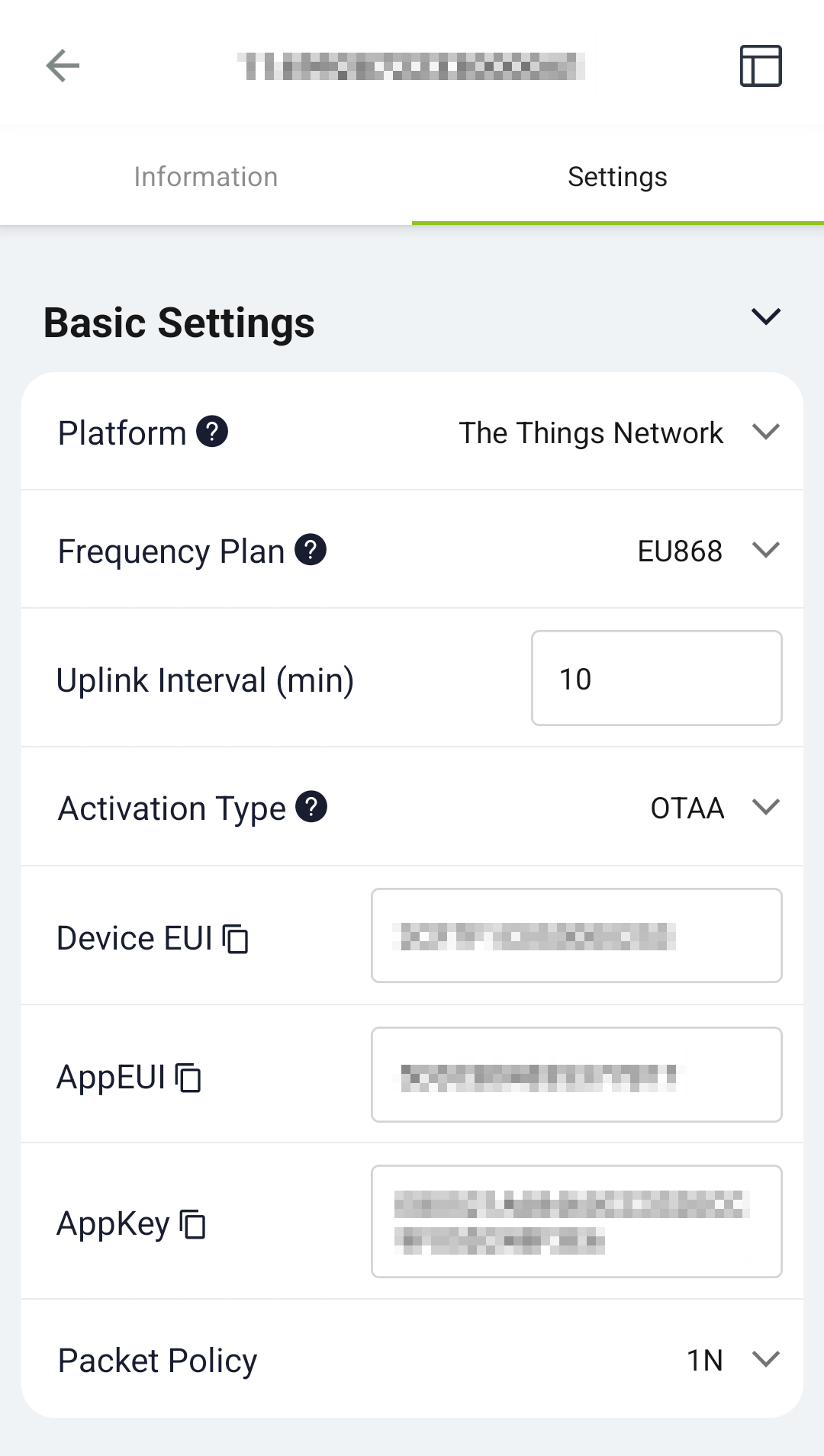
Once you reach the menu of the device, select the Settings tab. After that click Platform on the dropdown menu. There you need to select The Things Network. Make sure the Frequency Plan is correct as well. Finally, copy the Device EUI, AppEUI and AppKey and save them as they will be needed later for onboarding.
Onboarding to The Things Stack
The device can be onboarded using the Device Repository or manually.
Note:
The S210x does not support onboarding with a QR code.The LoRaWAN® Device repository comprises over 800 end-device profiles, including the Seeed Studio, which enables quick and easy registration with The Things Stack.
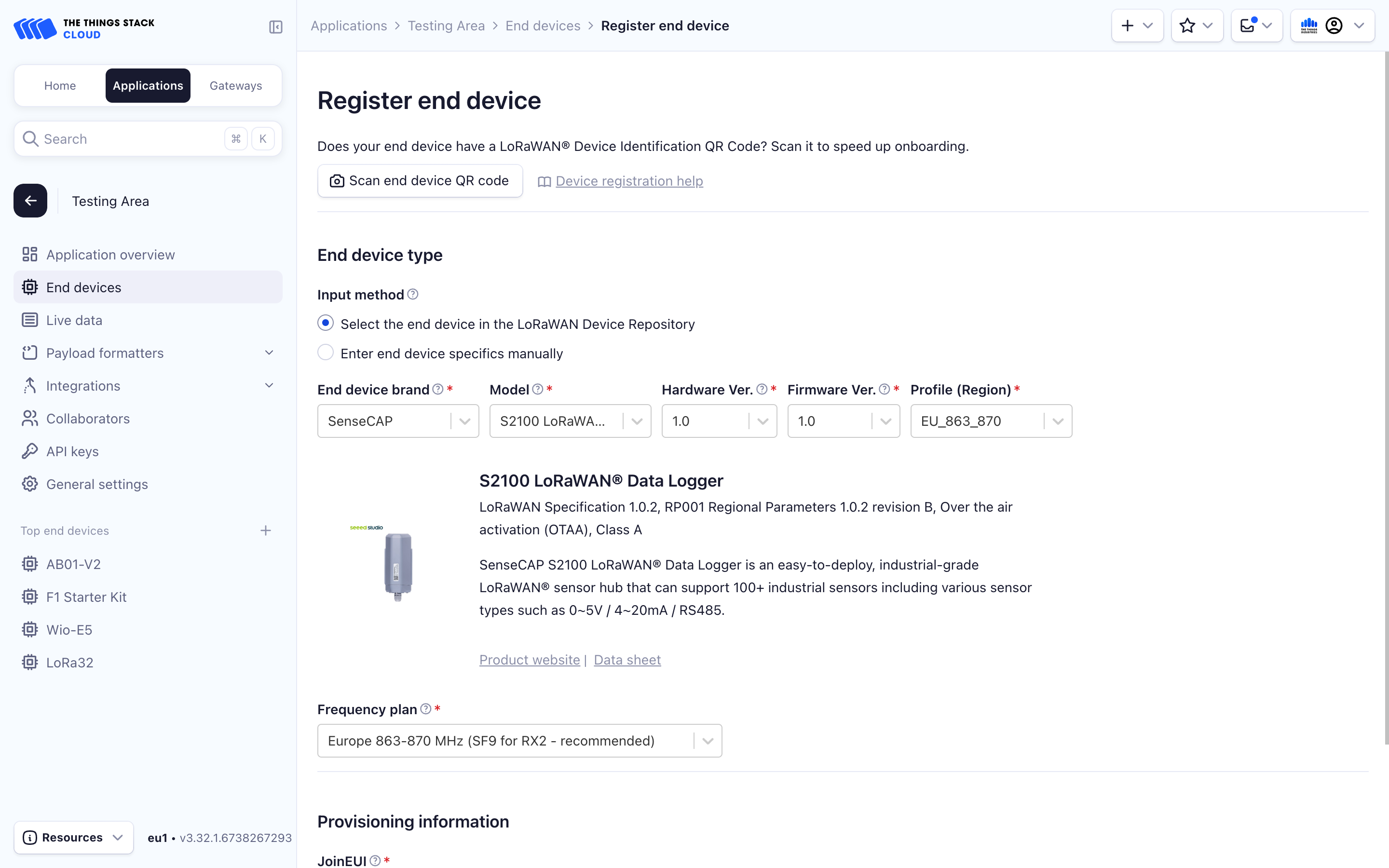
In the End device type section, under Input method, select either the Select the end device in the LoRaWAN Device Repository or Enter end device specifics manually option. The Onboarding devices without QR codes section of the Adding Devices guide explains this procedure in detail. Following details are S210x-specific:
- End device brand: SenseCAP
- Model: S210x (replace the ‘x’ with whichever type you have)
- Hardware Ver.: 1.0
- Firmware Ver.: 1.0
Then fill in the Provisioning information, which were found in the first steps.
After configuring your device, select the Register end device button.
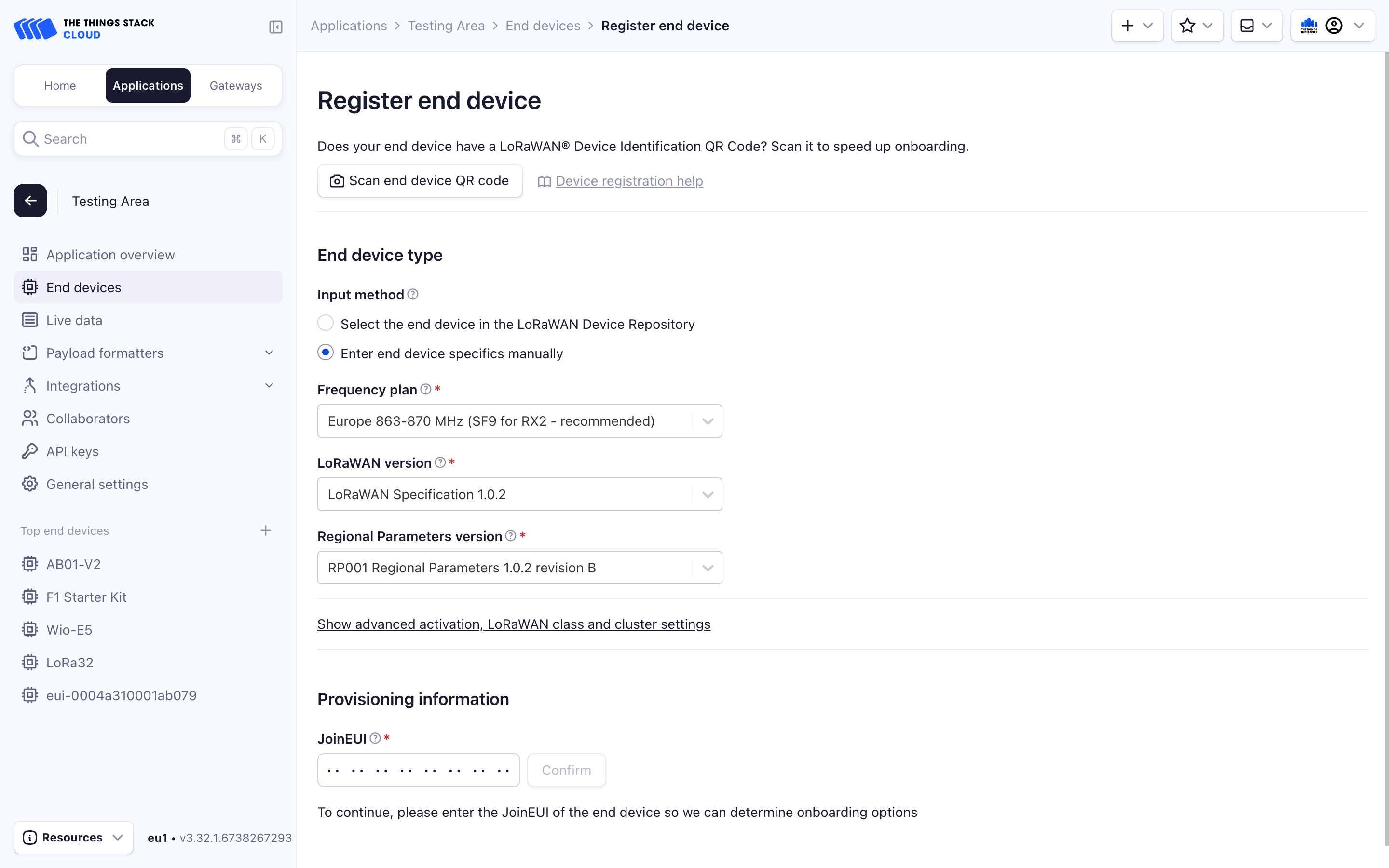
If you prefer onboarding manually, in the End device type section, under Input Method, select the Enter end device specifics manually option. The Manually adding devices and Over the Air Activation (OTAA) guides explain this procedure in detail. Following details are specific to the S210x:
- LoRaWAN version: LoRaWAN Specification 1.0.2
- Regional parameters version: RP001 Regional Parameters 1.0.2 revision B
Then fill in the Provisioning information, which were found in the first steps.
After configuring your device, select the Register end device button.