Gettings started
The easiest way to set up a device on Blynk is to use one already connected to The Things Stack.
Prerequirements
- An application on The Things Stack server
- A Blynk account
- A connected LoRaWAN device to The Things Stack server
Connecting your The Things Stack application to Blynk
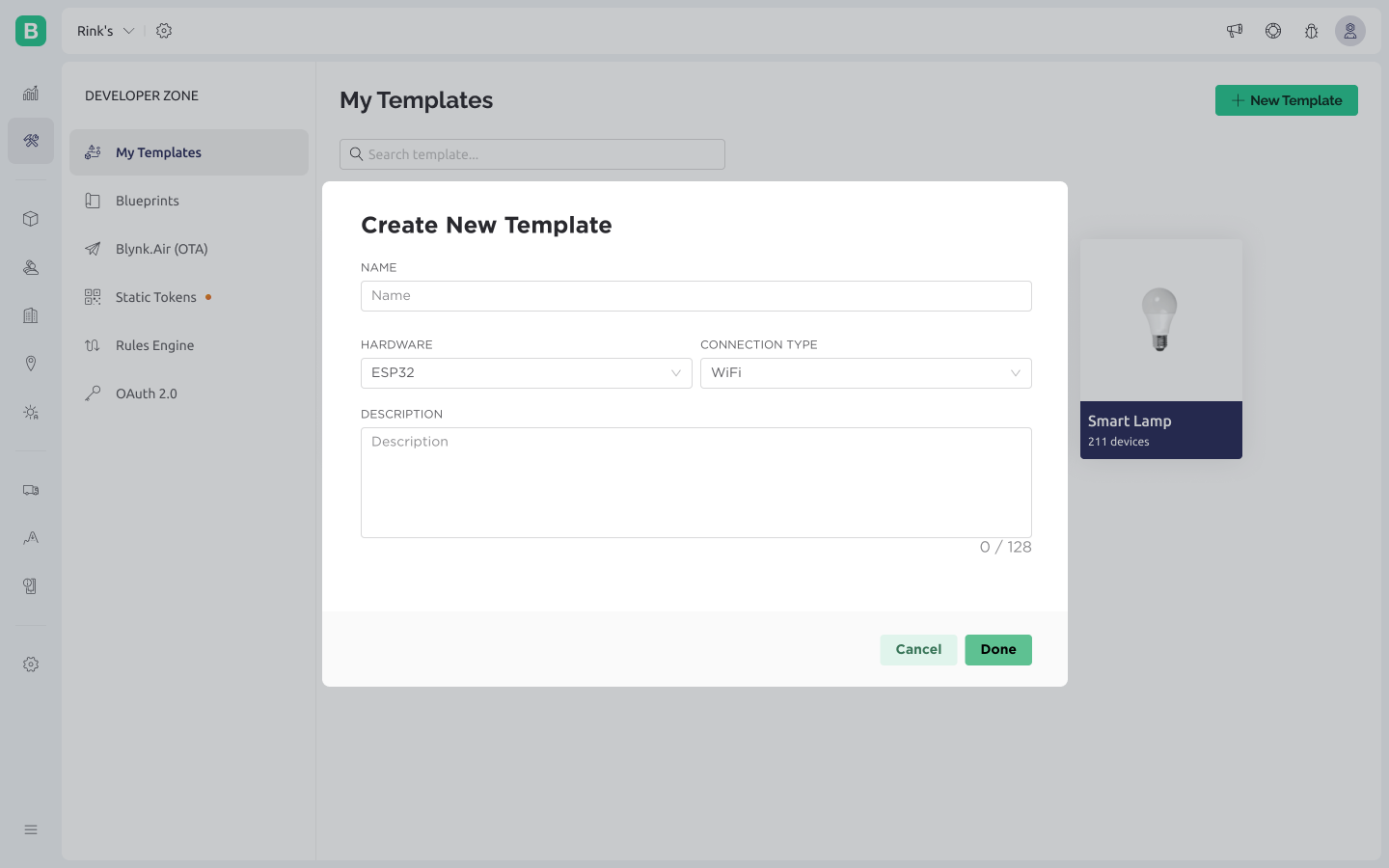
Start by creating a Blynk template for your device. Navigate to Blynk Console -> Developer Zone -> My Template -> + New Template. Provide a meaningful name, optionally select your hardware, and add a description. Click Done to complete the setup.
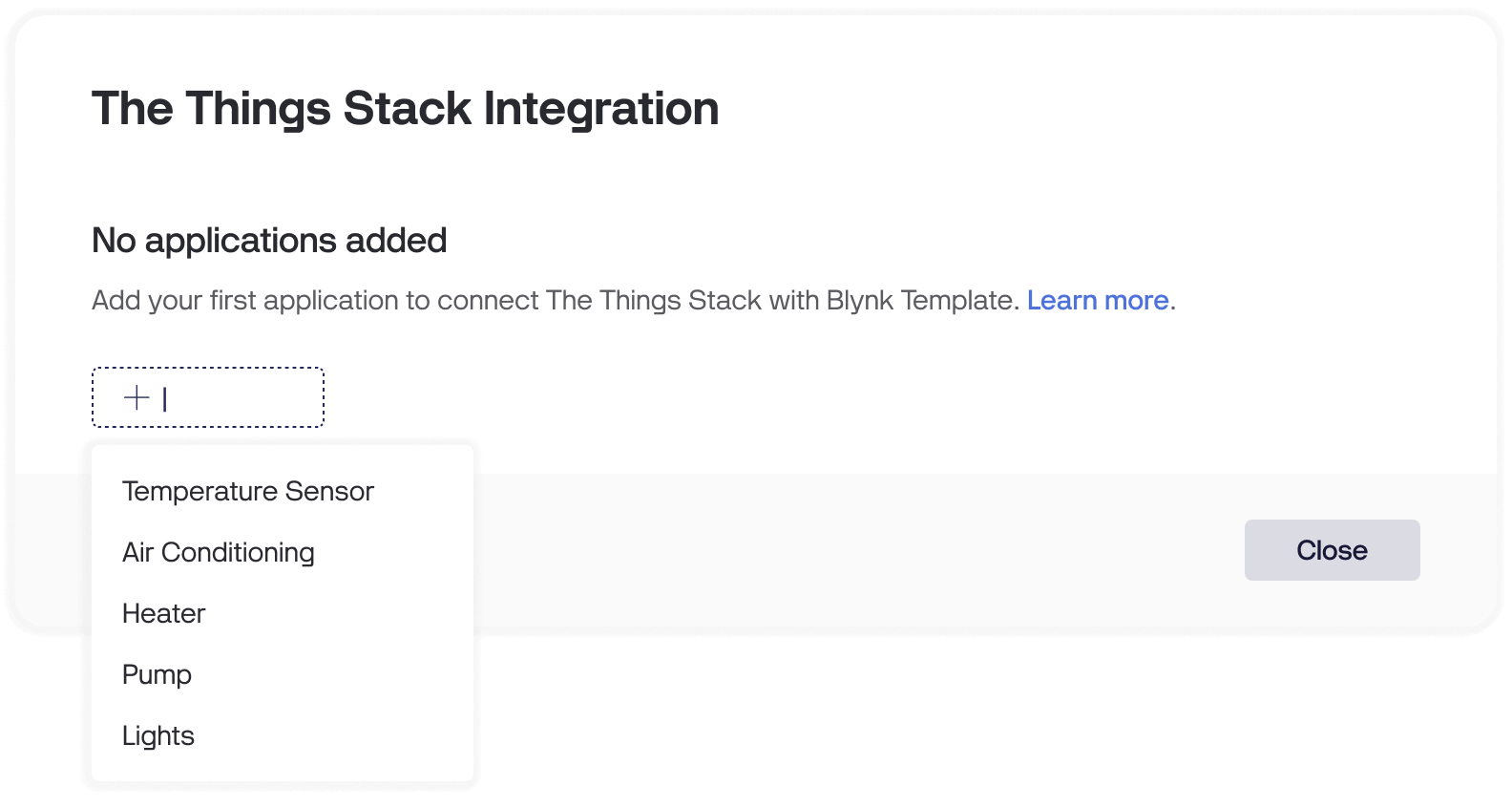
Now that you have a template, proceed with connecting it to The Things Stack application. In the Blynk Console, go to Developer Zone -> Integrations -> The Things Stack. Click the + Add button and select the template you created earlier.
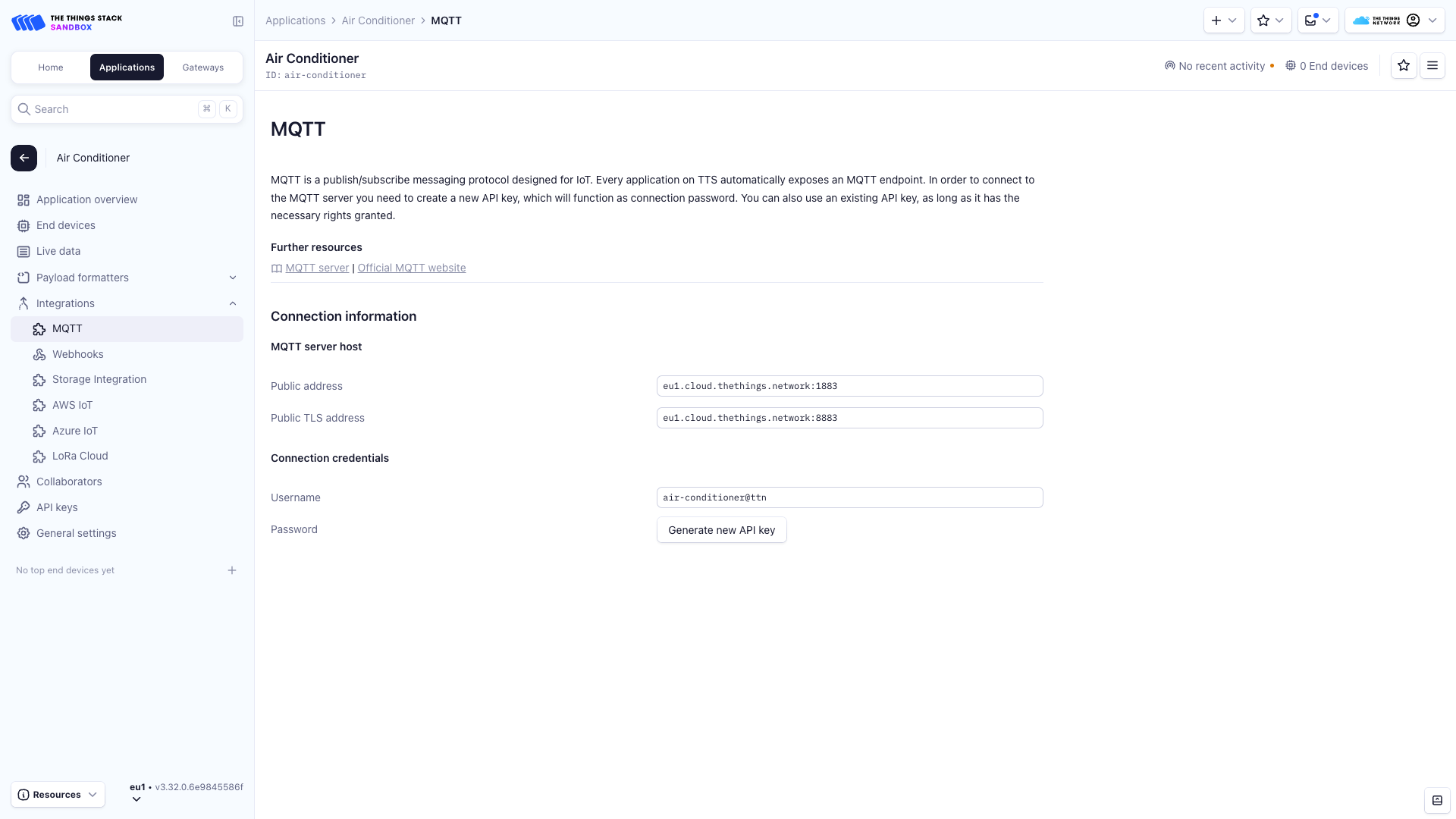
Next, navigate to your The Things Stack Application -> Integrations -> MQTT. Copy the Public TLS Address and paste it into the MQTT Server field on Blynk. Then, copy the Username from your The Things Stack Application and paste it into the Username field on Blynk. Finally, click Generate API Key on The Things Stack, copy the generated key, and paste it into the Password field in Blynk.
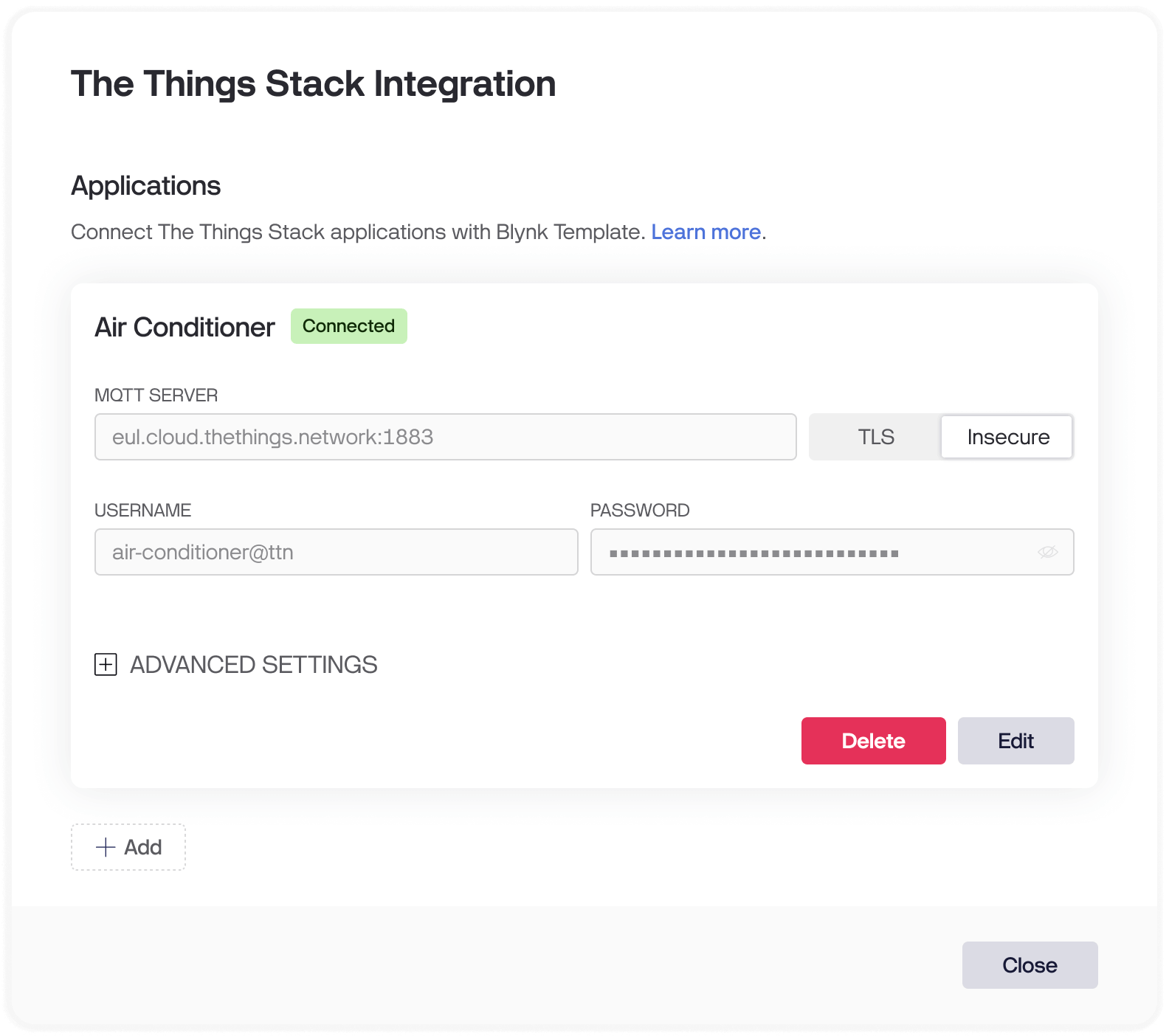
Click the Connect button at the bottom of the application card on Blynk. You will see the integration status change to Connected.
Once this is done, Blynk will automatically create the device connected to The Things Stack as soon as it sends any data. This device will then be available on the Devices page.
Sending uplink and downlink messages
Once your first device is connected to Blynk, it’s time to transfer some data! Start by configuring the Payload formatter on The Things Stack.
Uplink
For uplinks, Blynk requires the data to be in key-value pair format, where the key is either the datastream name or pin (such as v1 or a10) and the value is the datastream value. The value type must match the datastream value type! Also, prefer using only Virtual Pin, Enum and Location datastream types. Here is an example of the decoded uplink:
{
  "temperature": 24.1,
  "humidity": 54,
  "location": [-73.935242, 40.730610]
}
In this example, Blynk will set the datastream with the name temperature to the value 24.1 and the datastream with the name humidity to the value 54 and datastream with name location to the longitude -73.935242 and latitude 40.730610 (longitude goes first).
Note:
Since Blynk does not support a boolean datastream value type, you must use either the Integer or Double datastream value type. The valuetrue will be represented as 1, and false as 0.
To create or edit datastreams, go to Blynk Console -> Developer Zone -> My Templates -> select your template -> Datastreams. Click the Edit button in the top right corner to make changes. The datastreams configuration for this example may look like this:
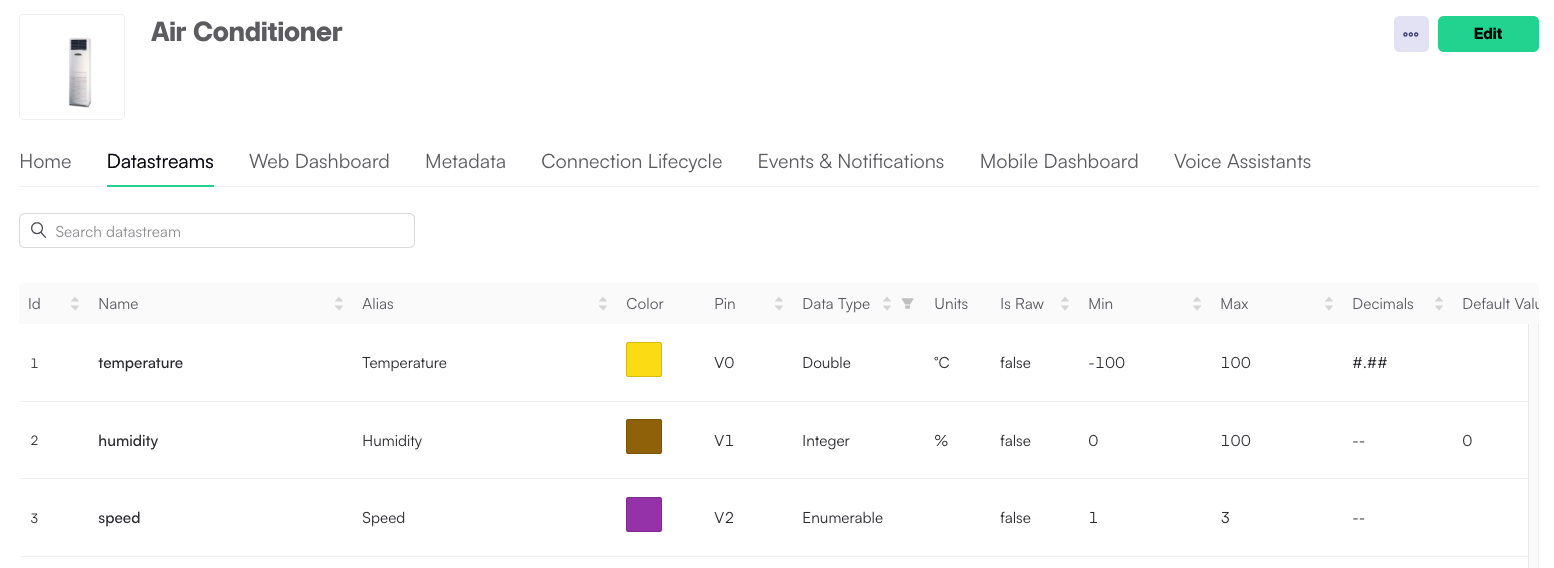
Note:
Each time Blynk receives an update from the device, it will trigger the Online lifecycle event. Therefore, it is recommended to configure a meaningful wait time to prevent your device from being stuck in the offline state.Downlink
For each datastream update via the web dashboard, mobile application, automation, etc., Blynk will send a separate downlink to the device.
This will trigger the encodeDownlink function of your Downlink Payload formatter.
Here is an example of the downlink that Blynk will send to the device, indicating that the datastream with the name speed (pin v2) has been updated to the value 3:
{
  "name": "speed",
  "pin": "v2",
  "ts": 1721202415068,
  "value": 3
}
The ts field represents the timestamp in Unix milliseconds format when the value was actually updated.
Visualizing data and sending commands to the device
After configuring the Payload Formatter on The Things Stack and setting up Datastreams in your Blynk template, you can proceed to visualize data and send commands to your device. You can do this either from the device dashboard on the Blynk Console or through the Blynk IoT Smartphone App.
For guidance on configuring widgets for the Device Dashboard and Mobile App, refer to the Blynk documentation:
Additionally, take advantage of other powerful Blynk features, such as Automations, WebHooks, and the Device HTTPS API, to build more advanced workflows.
Also, check the System DataStreams section to grab more info from your device.